
Content Sources
Content Sources is where administrators monitor the indexed files and connected folders that feed Shufflrr Blob.
Open Content Sources in the top navigation. The direct path is /content-sources.
- SharePoint
- OneDrive
- Shufflrr
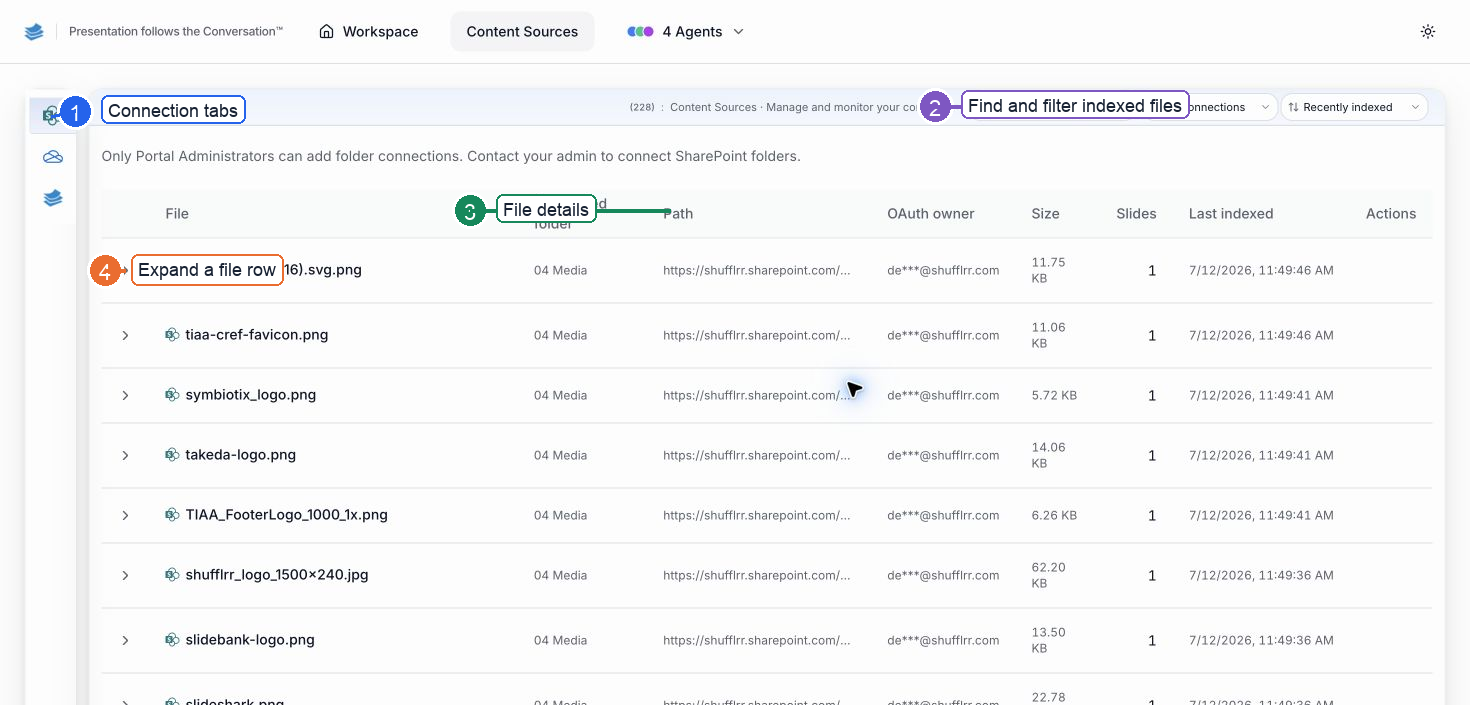
- Connection tabs — choose SharePoint, OneDrive, or Shufflrr.
- Find and filter indexed files — use search, connection status, and sort controls.
- File details — review the folder, path, owner, size, slide count, and indexing time.
- Expand a file row — open a file for the available additional details.
Why use Content Sources?
Content Sources define where the AI agents look for presentation content. A well-organized set of sources improves search quality and keeps results relevant.
View connected sources
Choose the SharePoint, OneDrive, or Shufflrr tab. The table lists indexed files for that connection type. Use the search box, connection filter, and sort control to narrow the list.
You can review:
- File name and connected folder
- File path
- OAuth owner
- File size and slide count
- Item count for the selected connection
- Last sync time
Expand a file
Expanding a file row shows more information about that indexed file.
Steps
- Click the expand icon on a file row.
- Review the file information and indexing details available to your role.
Add a content source
Only Portal Administrators can add folder connections. If the page says to contact your administrator, your current role can monitor indexed files but cannot create a new connection.
Delete a content source
Use the row actions when your role allows source management. Destructive actions require confirmation.