Workspace — Getting Slides to Present
The Workspace at /app is the main area for finding, preparing, and presenting slides.
The workspace has three views:
- Backstage — search and preview privately.
- Podium — queue and preview presentation choices.
- Screen — control what the audience sees.
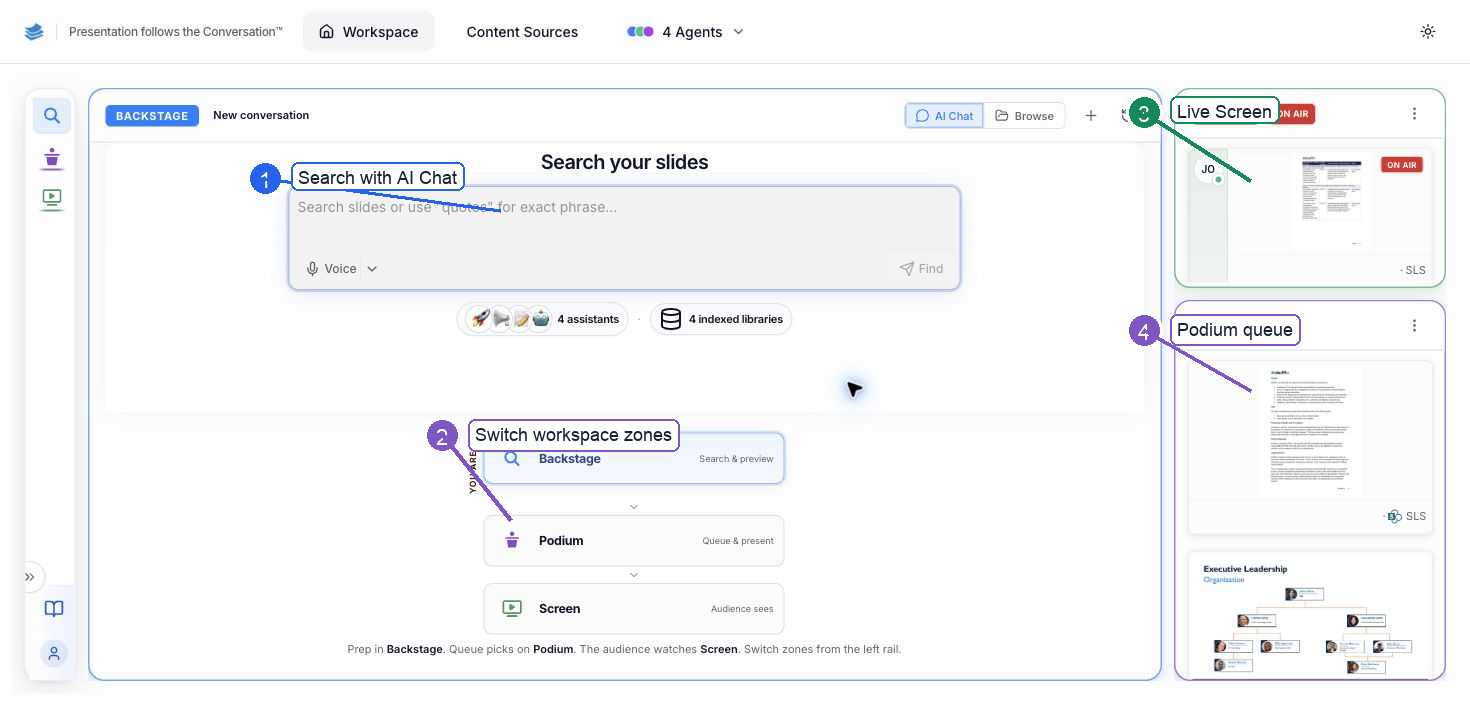
- Search with AI Chat — enter a request to find slides.
- Switch workspace zones — move between Backstage, Podium, and Screen.
- Live Screen — review what the audience currently sees.
- Podium queue — review the slides waiting to be presented.
Search in Backstage
Backstage opens in AI Chat mode. Use the Search slides or use "quotes" for exact phrase... box to search the active assistants and indexed libraries. The cards beneath the search box show the Backstage → Podium → Screen workflow.
Steps
- Open Workspace.
- Confirm Backstage is selected.
- Keep AI Chat selected.
- Enter a topic, keyword, question, or quoted exact phrase in the search box.
- Click Find.
- Use Voice when you want to dictate the search.
The badges below the search box show how many assistants and indexed libraries the search covers.
Start or reopen a conversation
Use New Chat to start a separate conversation. Use Open chat history to return to an earlier conversation.
Browse connected content
Use Browse when you want to navigate a connected site instead of asking the agents a question.
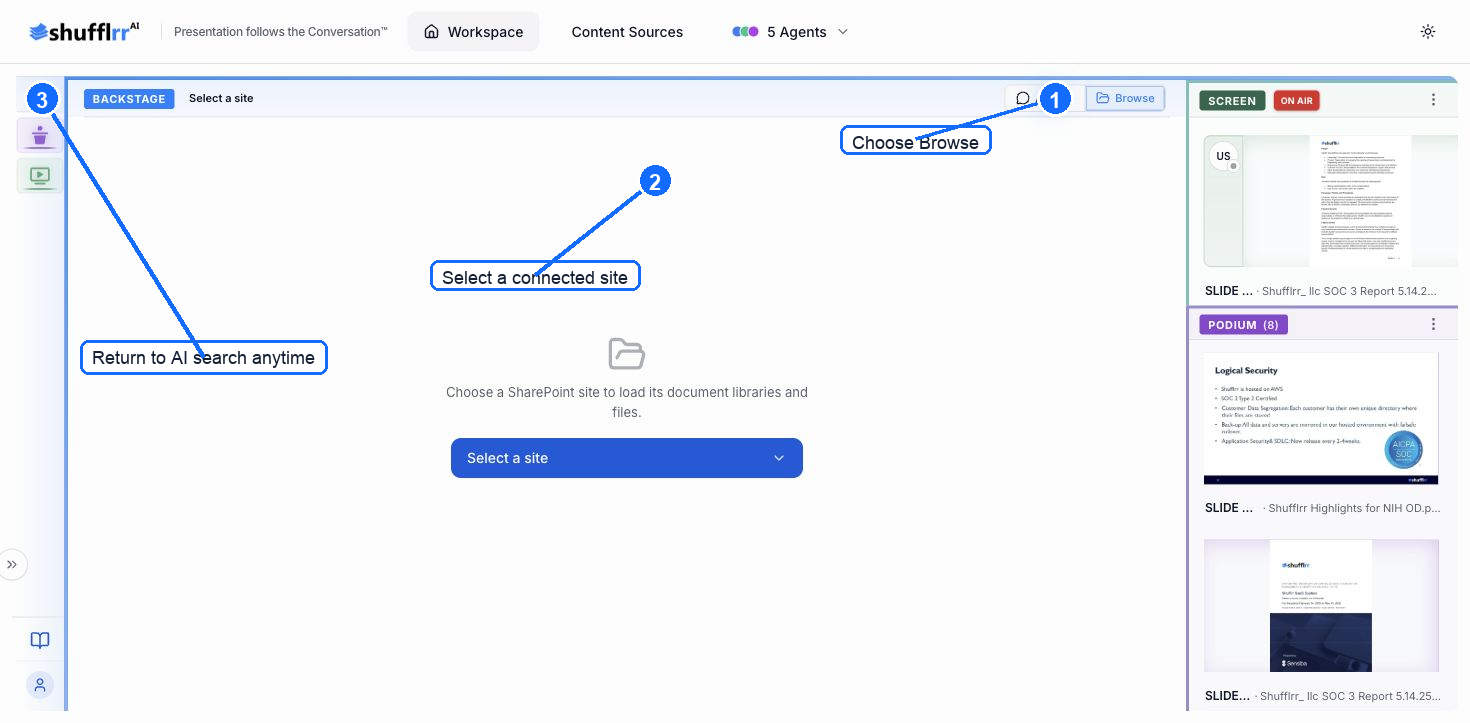
- Select Browse in Backstage.
- Click Select a site.
- Choose a connected site, library, and file.
- Return to AI Chat whenever you want to search again.
Prepare slides on Podium
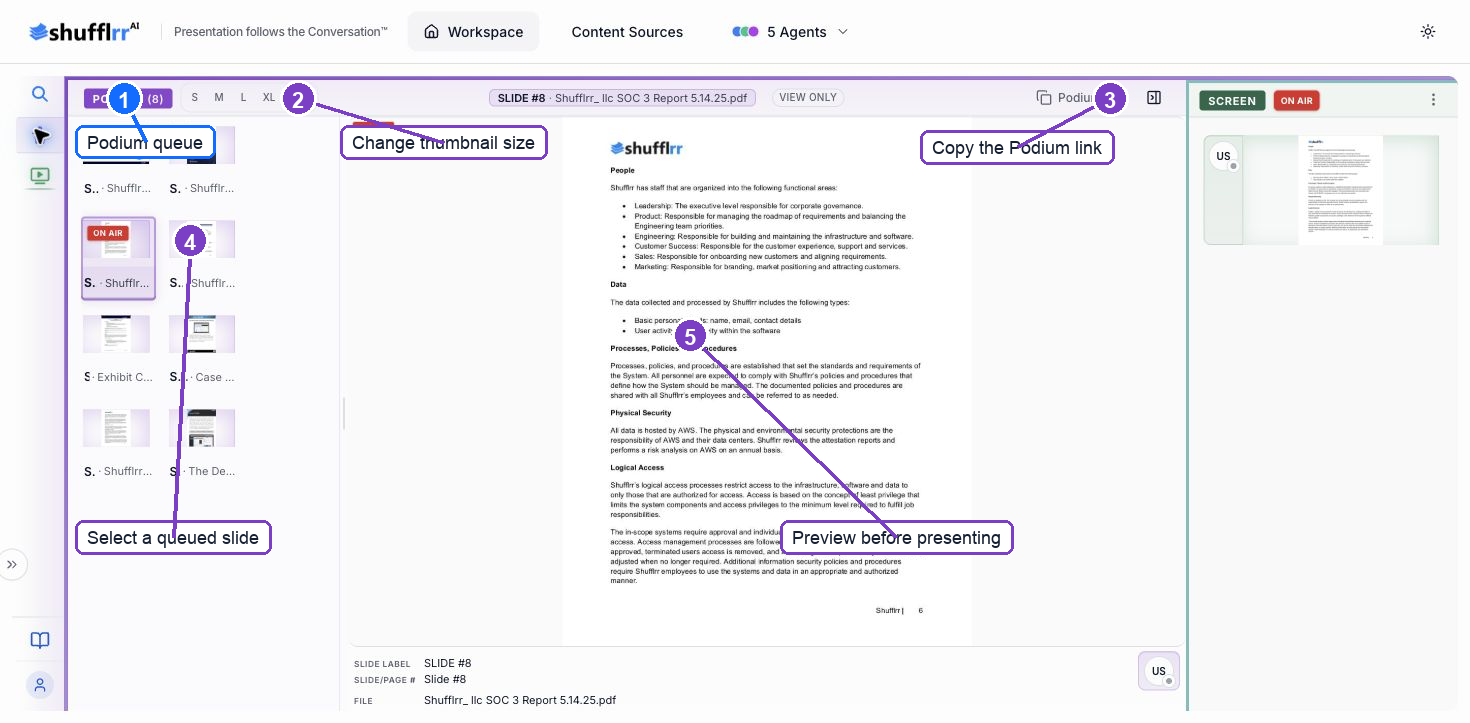
Podium is the holding area for slides you may show.
- Select Podium from the left rail or the workflow cards.
- Select a queued slide to preview it.
- Use the size controls to change queue thumbnail size.
- Use Podium link to copy a link to the holding view.
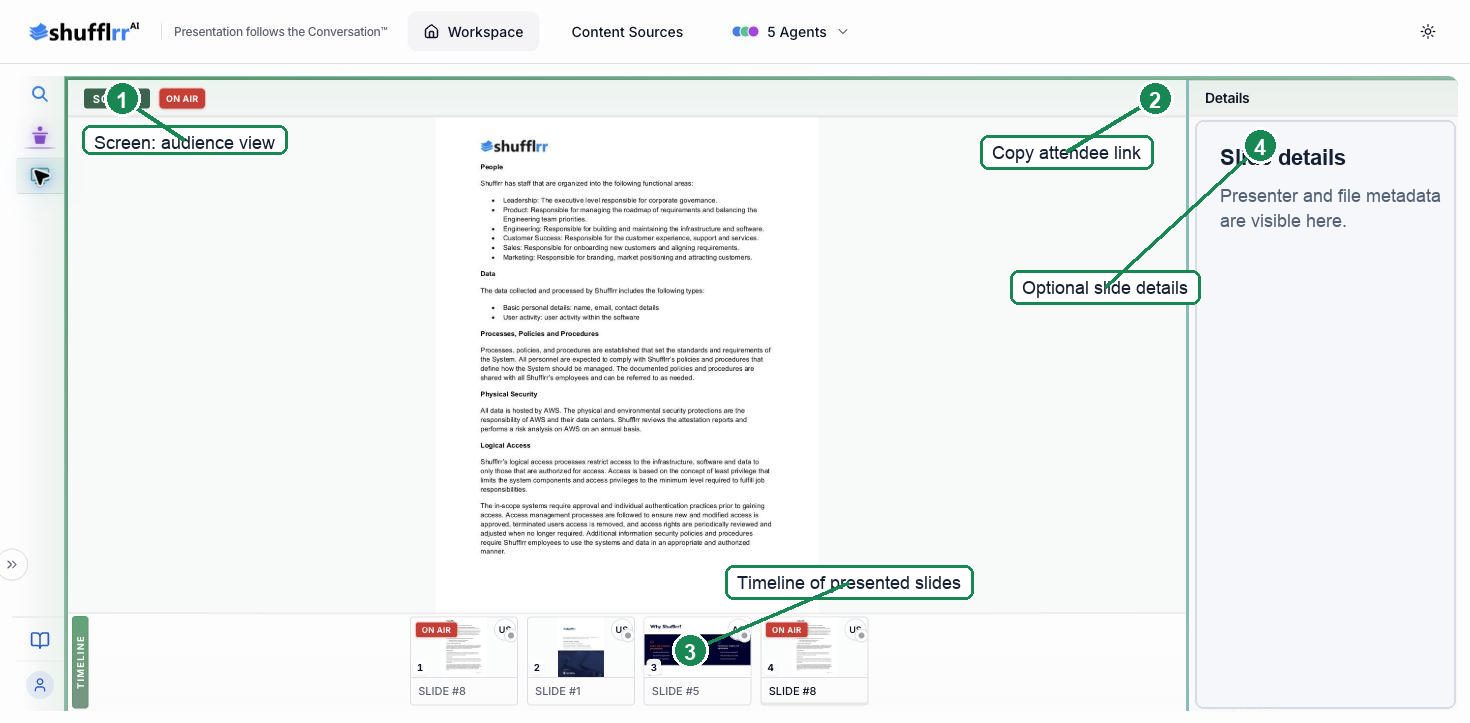
Present on Screen
Screen is the audience-facing workspace.
- Select Screen from the left rail or the workflow cards.
- Confirm the intended slide is marked ON AIR.
- Use the timeline to review the order of presented slides.
- Use the copy button to copy the Screen link for attendees.