
Insert slides and images
You can find slides and images from your Shufflrr library and insert them into your PowerPoint presentation without leaving the Add-in.
How to find a slide
Use the Files tab to browse and search:
- Open the Files tab in the task pane.
- Browse the folders and files in your library (OneDrive, Shufflrr, SharePoint).
- Use keyword search for files stored in Shufflrr Cloud to narrow results.
For AI search, see Shufflrr AI in the Add-in.
How to add a slide to your presentation
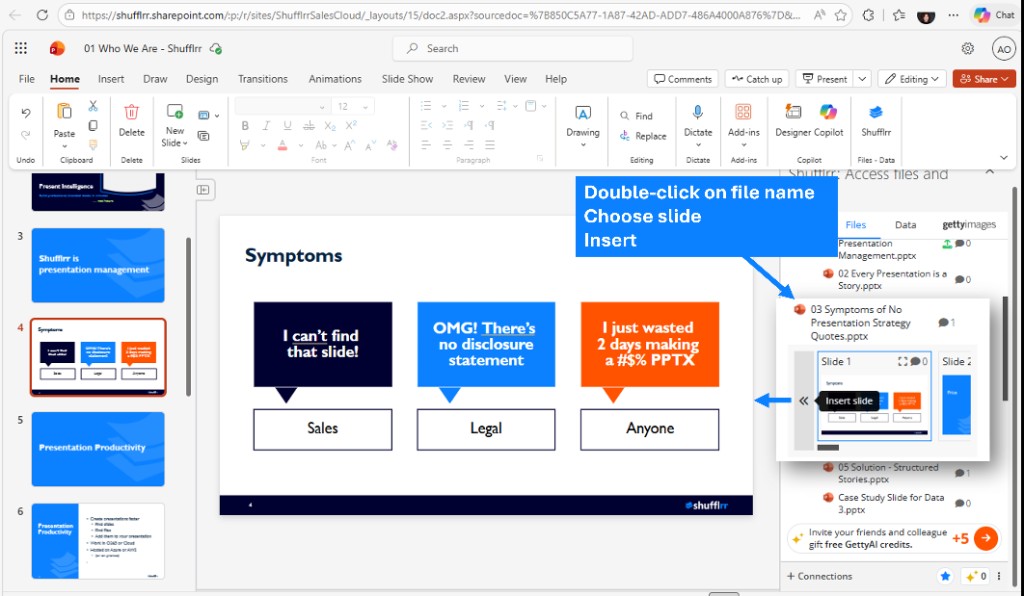
On the Files tab, use this flow:
- Double-click the file name to open a slide preview.
- Choose the slide you want from the thumbnails below the file name (scroll left to right if needed).
- Click Insert slide (or Insert / >>) to add that slide into your open presentation.
How to add an image to your presentation
Images are handled the same way as slides:
- Double-click the file — thumbnails open below.
- Scroll and select the image (or slide containing the image). A blue border indicates the selection.
- (Optional) Click the expand icon on the thumbnail for a larger preview.
- Click Insert (or Insert slide / >>) to insert it into your presentation.
Video in the Add-in
Microsoft Office does not currently support video inside Add-ins. When Microsoft adds support, Shufflrr will make this feature available in the Add-in.
Quick tips
- Office 365 auto-saves your changes as you work.
- Keep file names identical when updating files so version tracking and auto-updates work correctly.