
Slide Updating
Slide updating lets you distribute approved updates from a parent presentation to child presentations across your organization. This feature is available in Shufflrr Enterprise.
To trigger Shufflrr's auto-update workflow, upload the revised file with the exact same file name in the same folder.
How to update a slide in Shufflrr
- Upload the new file using the same file name, in the same folder (standard overwrite behavior).
- Shufflrr recognizes the file as an updated version and compares the old and new versions.
- Review the side-by-side, slide-by-slide comparison. Shufflrr marks changes by color:
- Yellow: text changed on a slide
- Green: new slide
- Red: removed slide
- Blue: no change
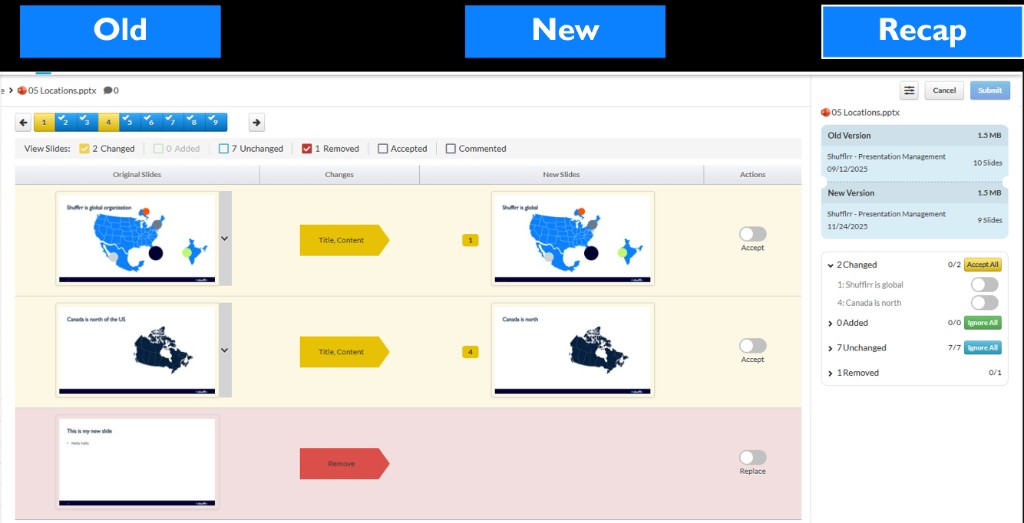
- Accept or ignore each slide change.
- Submit the approved updates to distribute them across child presentations in Shufflrr.
- Choose your rollout mode:
- Force update: updates are applied automatically to child decks.
- Manual update: users choose whether to apply the new slide updates.
Tip: Keep file names identical for reliable version tracking and update propagation.