
Create and edit presentations
You can open existing Shufflrr presentations in PowerPoint, edit them, and save your changes back to Shufflrr — or start from a new file and build with slides from your library. The Shufflrr Add-in works with files from OneDrive, Shufflrr Cloud, and SharePoint in the task pane.
Create or open a presentation
- Start with an existing PowerPoint file or open a new blank presentation.
- In the Home ribbon, click the Shufflrr icon to open the Add-in.
- Sign in and connect OneDrive, Shufflrr, and SharePoint as needed (see Sign in to the Shufflrr Add-in).
- In the Shufflrr task pane, you'll see your files. Double-click a file name to open it in PowerPoint.
- The file must be opened in Office 365 PowerPoint in order to add slides.
- Click once to preview the file. The slide thumbnails will appear below the file name. Scroll left to right.
- Select a slide and click Insert to add it to your current presentation.
- Office 365 auto-saves as you work. For files opened from OneDrive or SharePoint, no extra save step is needed.
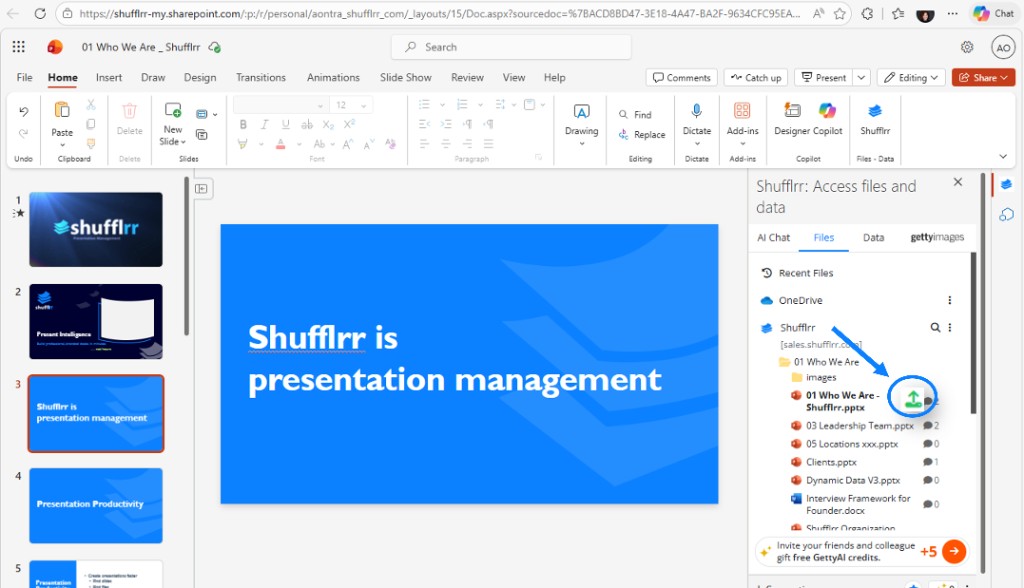
- When you're done editing a file that came from Shufflrr, click the green upload icon in the Add-in (next to the file in the Files list) to save your updated presentation back to Shufflrr.
Replace or update a file in Shufflrr
The same flow applies for files from Shufflrr, OneDrive, or SharePoint:
- Open the file from the Shufflrr app, OneDrive, or SharePoint.
- Double-click the file name in the task pane.
- Make your changes in PowerPoint.
- Save (or use the green upload icon for Shufflrr files so the update is stored in Shufflrr).
Tip: Keep file names identical when saving updates so version tracking and auto-updates continue to work correctly.
If upload is blocked
If you see an upload blocked or permission error, your Shufflrr admin permissions may have changed. Ask your IT or Shufflrr admin to re-add you to the Shufflrr Admins group.